Game Installation
On all platforms, GtkRadiant reads and writes game assets from within your game's directory. Before you start installing GtkRadiant, first make sure you have the game you want to edit for installed. GtkRadiant officially supports a number of different games. It is recommended to run a "clean" install: creating a separate installation of the game free of any third party custom content.
Windows
GtkRadiant 1.6 is packaged as a compressed zip file. Extract it somewhere on your system such as C:\GtkRadiant. Double-click on radiant.exe to start GtkRadiant, and be patient while the program initializes for the first time.
Some Windows users may find that they need to install the Visual C++ Redistributable for Visual Studio 2015. If you try to run GtkRadiant and you are getting an error message about missing .dll files, you will need to install this first. 32-bit users will need to download vcredist_x86.exe, 64-bit users will need to download both vcredist_x86.exe and vcredist_x64.exe.
Mac OS X
The Macintosh version of GtkRadiant relies on the Unix X11 system. For many OS X computers, X11 may already be installed with your operating system. It is recommended that you run a system update to make sure that you have the latest version. However if using OS X 10.8 (Mountain Lion) or later, Apple no longer packages X11 with the OS and is redirecting users to manually install X11 instead. The easiest way to do this is to download and install XQuartz, it is a simple .dmg file, just run it and follow the instructions.
Currently, Mac users will also need to install MacPorts. It can be downloaded as a "pkg" installer so just run the program and follow the instructions. Once installed, you will need to install additional dependencies for MacPorts. Open Terminal and enter the following (it may take some time and there is no feedback in Terminal as it downloads and installs, so be patient).
sudo port install dylibbundler pkgconfig gtkglext scons
GtkRadiant for Mac can be downloaded as a .dmg file. Just run the .dmg file and drag and drop the GtkRadiant.app to your Applications folder. Then double-click on GtkRadiant.app and wait for the program to initialize for the first time.
If using OS X 10.8 or later, you may have Gatekeeper enabled and you may receive the following message:

To override the Gatekeeper functionality for GtkRadiant, you can right-click on the GtkRadiant.app and select "Open", or follow the instructions here.
Linux
The Linux version is distributed as a flatpak application. See GtkRadiant on Flathub.
If you wish to do development work and compile the Linux version, we highly recommend using the flatpak SDK rather than attempting to build on your local distribution.
There are more instructions for the Linux developer in the source code.
First Start
Starting GtkRadiant for the first time, the program needs to initialize and copy game-pack files to where you installed your game. You will see a dialog box.
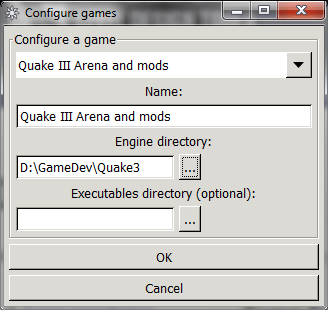
In the drop down menu, you will need to specify the game you are editing for. If more than one is required, just pick the first one to set up.
Then, tell GtkRadiant where you have the game installed. For most games, you will want to point the location to either the root of your game installation directory (eg. C:\Games\Quake3\). Click the OK button to proceed.
The game selection dialog now appears. Select the game you want to use or click on "Configure more games" to set up additional games. Click OK when done.
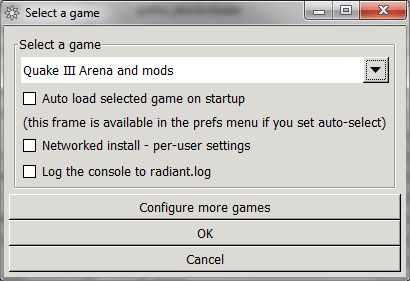
You should now see the GtkRadiant main interface load up. Be sure to check though the preferences to set things up to your liking. For further reading, see the Documentation section for additional guides.